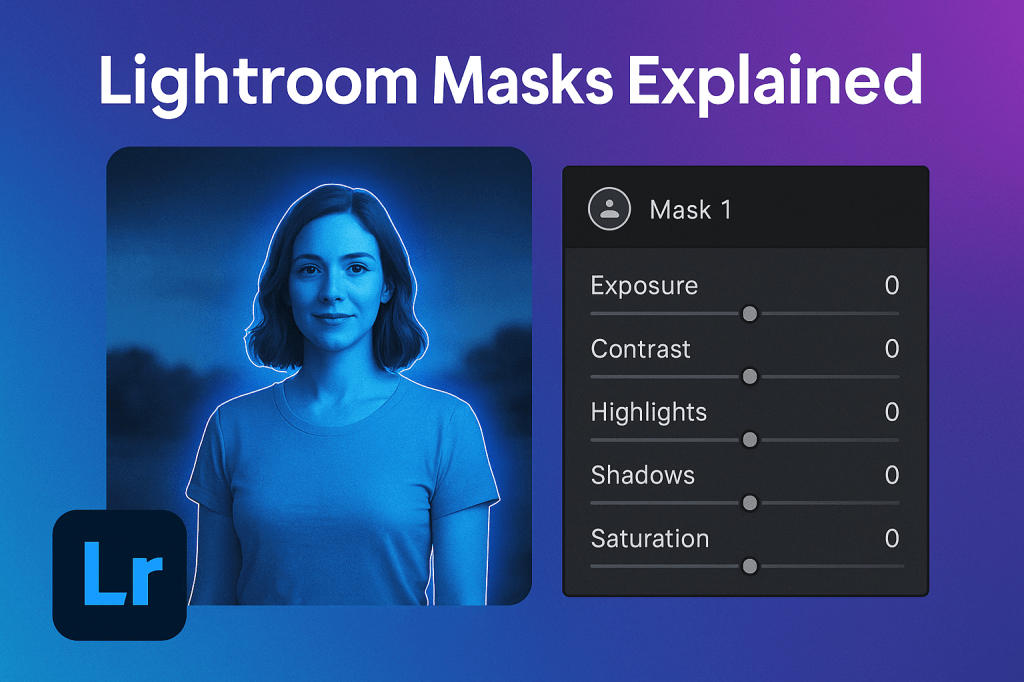
Lightroom’s masking tools are among its most powerful features. Instead of applying edits to the whole image, masks let you target specific areas—perfect for brightening a subject, enhancing skies, or fine-tuning details without affecting the rest of the photo.
What Are Masks in Lightroom?
A mask isolates a part of your photo so adjustments only apply to that area. For example:
- Brightening just the face in a portrait.
- Adding more saturation to the sky.
- Sharpening a foreground object.
This is an essential step in creating professional-looking edits.
Types of Masks in Lightroom
1. Brush Mask
Paint adjustments directly onto the photo with a customizable brush. Great for detailed retouching.
2. Linear Gradient
Apply gradual adjustments across a photo (e.g., darkening the sky or brightening the foreground).
3. Radial Gradient
Circular or oval adjustments—ideal for spotlighting a subject or creating vignette effects.
4. Color Range Mask
Select and adjust only areas with a specific color (like boosting greens in foliage).
5. Luminance Range Mask
Target specific brightness ranges—great for adjusting highlights or shadows precisely.
6. Subject & Sky Masks (AI-powered)
Lightroom automatically detects the main subject or sky, letting you edit them separately with one click.
Step-by-Step: Using a Mask in Lightroom
- Open the Masking Panel (click the circle icon in the toolbar).
- Choose a masking tool (e.g., Select Subject).
- Lightroom creates the mask automatically (AI masks) or lets you paint/draw (manual masks).
- Adjust sliders (exposure, contrast, saturation, etc.)—only the masked area changes.
- Add or subtract from the mask if needed for precision.
Pro Tips for Better Masking
- Combine multiple masks (e.g., brighten the subject + darken the background).
- Use Invert Mask to flip selections.
- Keep adjustments subtle for a natural look.
- Rename masks to stay organized during complex edits.
Final Thoughts
Lightroom masks give you the ability to edit like a pro, making targeted changes that transform an image without over-editing. Once you master them, your photos will gain depth, balance, and impact.
✅ Want to try masking tools yourself?
Download Adobe Lightroom today and explore how easy it is to edit specific parts of your photos with precision.



 Jelly GraphicsDesign