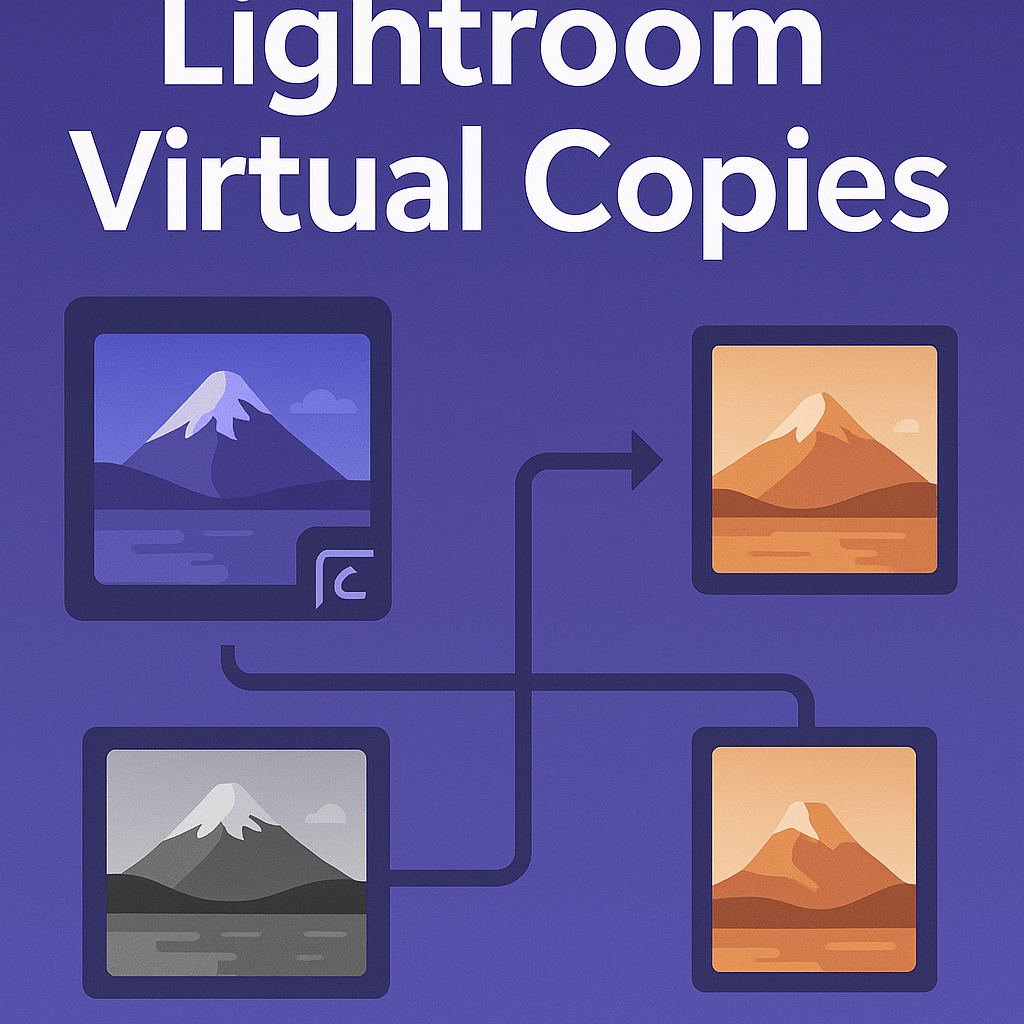
One of Lightroom’s hidden gems is the Virtual Copy feature. It allows you to create multiple versions of the same photo without duplicating the original file—saving you storage space while giving you editing flexibility.
What Is a Virtual Copy?
A Virtual Copy is a lightweight reference to your original photo. It doesn’t create a new file on your hard drive—instead, it just saves additional editing instructions.
Benefits:
- Save disk space.
- Experiment with multiple edits of the same image.
- Compare different styles side by side.
How to Create a Virtual Copy
- Right-click on a photo in the Library or Develop Module.
- Select Create Virtual Copy.
- A new thumbnail appears with a small page-turn icon in the corner.
You can now edit this copy independently from the original.
Practical Uses for Virtual Copies
- Black & White vs Color → Try different moods without committing.
- Different Crops → Export multiple aspect ratios (Instagram square, print 4×6).
- Preset Testing → Apply different presets to the same photo.
- Client Delivery → Show clients multiple looks without duplicating files.
Pro Tips
- Rename Virtual Copies (right-click → Rename) to keep them organized.
- Group them into collections for easy comparison.
- Remember: deleting a Virtual Copy does not delete the original photo.
Final Thoughts
Virtual Copies are perfect for experimenting, testing presets, or preparing different outputs. They give you flexibility without the storage cost of multiple duplicates.
✅ Want to try Virtual Copies yourself?
Start your free trial of Adobe Lightroom today and explore non-destructive editing with unlimited creative freedom.



 Jelly GraphicsDesign