
The Tone Curve is one of Lightroom’s most powerful yet underrated tools. While basic sliders control exposure, contrast, and highlights globally, the Tone Curve gives you fine-grained control over how light and dark tones behave—perfect for adding depth, mood, and professional polish to your photos.
What is the Tone Curve?
The Tone Curve is a graph that maps input tones (original brightness levels) against output tones (adjusted brightness).
- The horizontal axis → represents shadows (left) to highlights (right).
- The vertical axis → represents brightness levels.
By manipulating the curve, you can brighten, darken, or adjust contrast in specific tonal ranges.
Types of Tone Curves in Lightroom
1. Point Curve
- Add points directly to the curve and drag them up or down.
- Great for creating the famous S-Curve (adds strong contrast by darkening shadows and brightening highlights).
2. Region Curve (Parametric)
- Adjust sections with sliders for highlights, lights, darks, and shadows.
- Easier for beginners who don’t want to place manual points.
Classic Tone Curve Adjustments
✦ The S-Curve (High Contrast)
- Place a point in the shadows → drag slightly down.
- Place a point in the highlights → drag slightly up.
- Creates more punch and depth.
✦ Matte/Fade Effect
- Lift the black point (bottom left) upward.
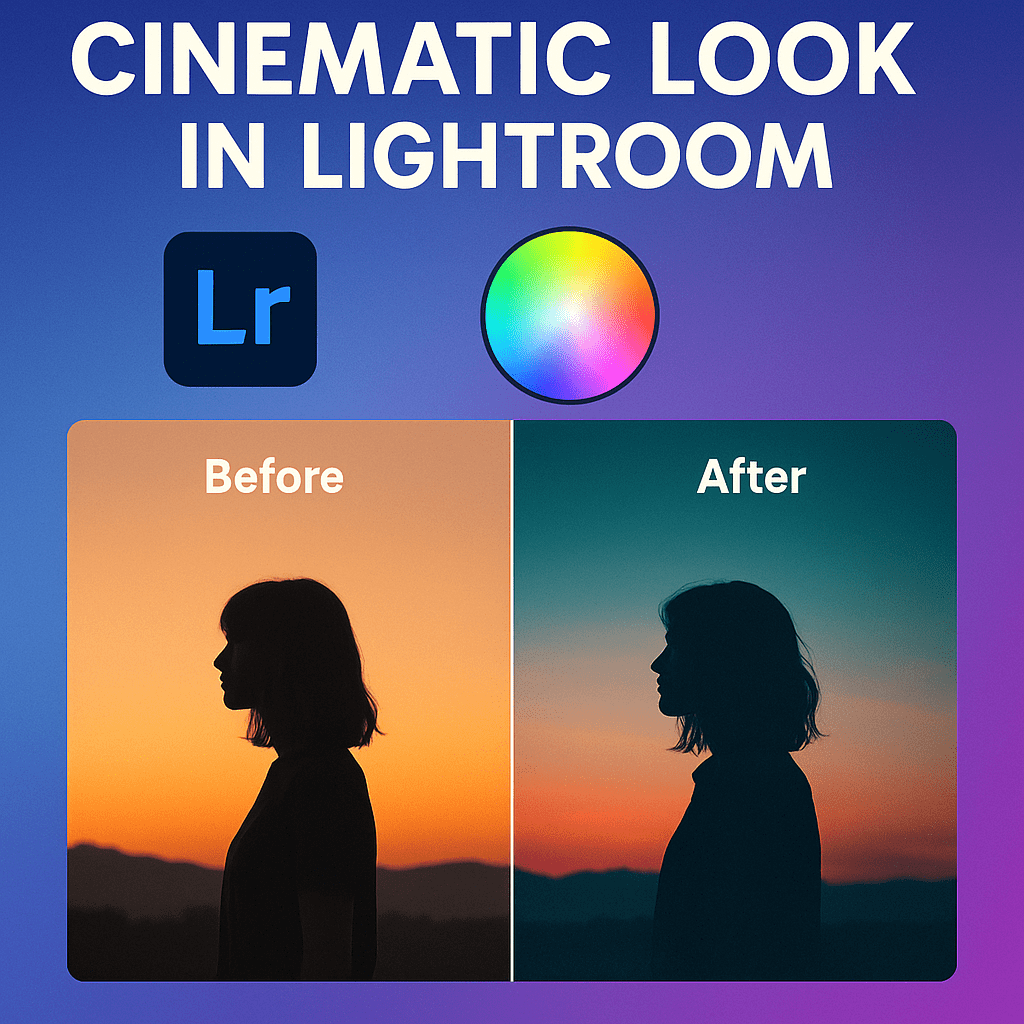
- Creates a washed-out, cinematic film look.
✦ Gentle Brightening
- Lift the midtones slightly.
- Perfect for portraits to enhance skin tones.
Pro Tips
- Subtle adjustments go a long way—don’t over-curve.
- Combine the Tone Curve with HSL sliders for creative color grading.
- Use individual RGB channels for advanced cinematic effects (e.g., teal shadows, orange highlights).
Final Thoughts
Mastering the Tone Curve unlocks a new level of editing control. Whether you’re going for high-contrast drama, vintage matte looks, or subtle tonal corrections, this tool can make your photos stand out.
✅ Want to master the Tone Curve today?
Start your free trial of Adobe Lightroom and experiment with contrast, matte effects, and cinematic color tones.



 Jelly GraphicsDesign