
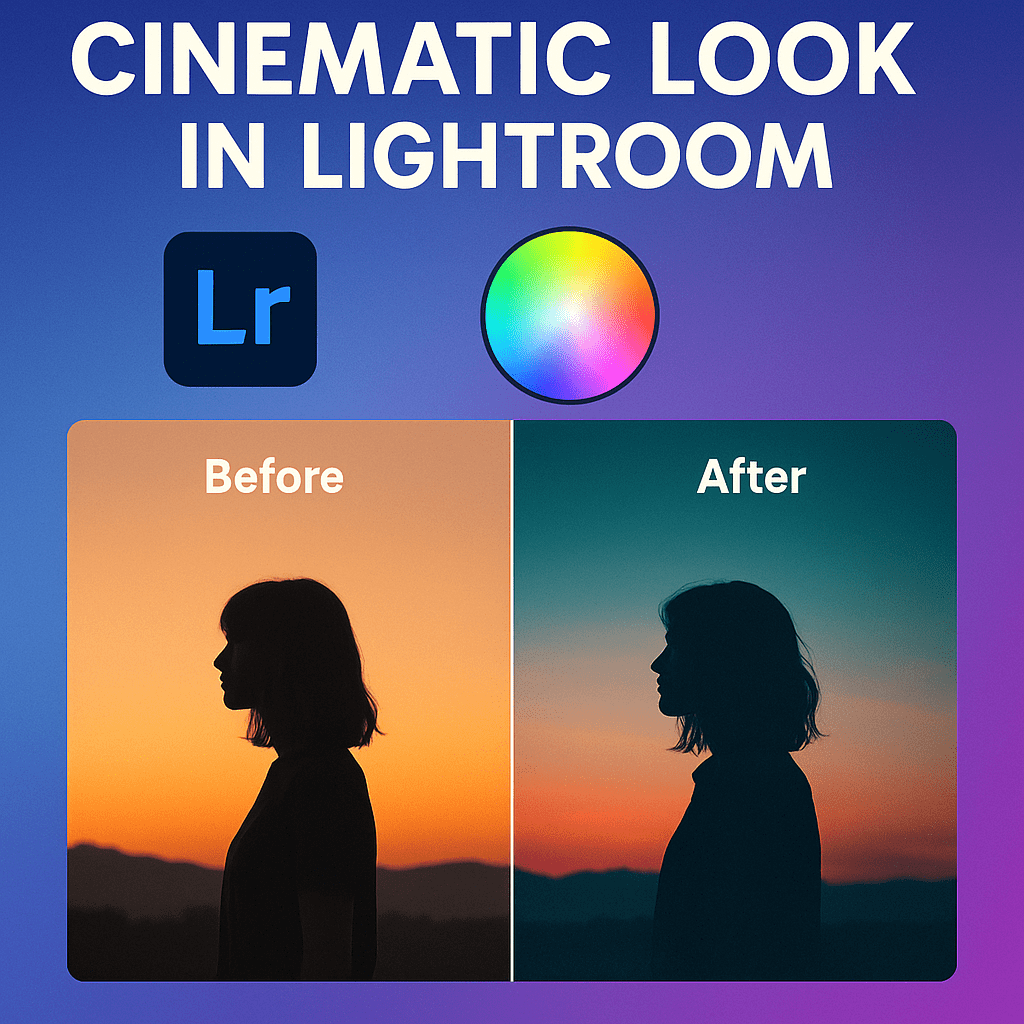
Lightroom isn’t just for photos anymore—you can now edit videos directly in Lightroom Mobile. This feature allows creators to bring the same color grading and aesthetic from their photo edits into their videos, making it easier than ever to create a consistent brand style.
Why Edit Videos in Lightroom Mobile?
- Consistency → Apply the same look to both photos and videos.
- Simplicity → Edit with the same sliders you already know from photo editing.
- Mobile-first → Edit clips on the go, no computer needed.
- Creative Freedom → Apply presets and color grading across all media.
How to Edit Videos in Lightroom Mobile
- Import Your Video → Tap the “+” icon and select a video from your camera roll.
- Open in Editor → Lightroom loads the video timeline.
- Apply Adjustments → Use sliders for exposure, contrast, color, and tone.
- Apply Presets → Your photo presets can be used on videos too.
- Export → Save to your camera roll in MP4 format.
What You Can Adjust in Video Editing
- Exposure, contrast, highlights, and shadows.
- White balance and color grading.
- Crop, rotate, and straighten.
- Presets for quick styles.
⚠️ Note: Lightroom Mobile does not offer full video editing (like trimming, transitions, or audio editing)—but it’s perfect for color grading and styling.
Pro Tips for Video Editing in Lightroom Mobile
- Shoot in good lighting—RAW-style recovery isn’t available for video.
- Keep clips short for faster export.
- Batch apply presets to multiple clips for consistent storytelling.
- Export in high resolution for Instagram Reels or TikTok.
Final Thoughts
Lightroom Mobile video editing is a game-changer for influencers and creators. By applying your favorite presets and color grading to video, you can keep your entire brand aesthetic consistent across platforms.
✅ Want to edit videos on your phone?
Start your free trial of Adobe Lightroom Mobile today and bring cinematic looks to your Reels, TikToks, and YouTube Shorts.



 Jelly GraphicsDesign